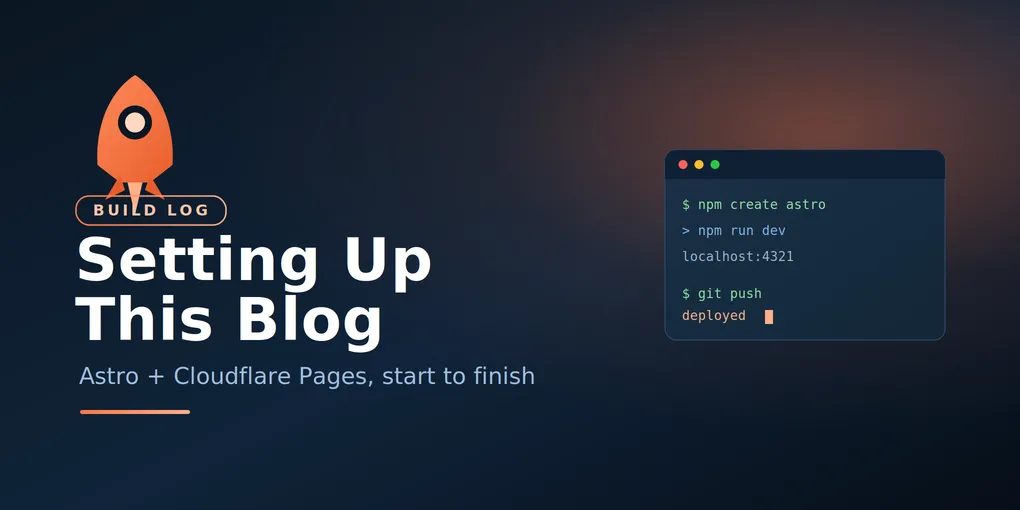
How I Set Up This Blog with Astro and Cloudflare Pages
I’ve been meaning to start a blog for a long time. This is the post about actually doing it — why I decided to, how I chose the tools, and the full setup so you can copy the path if you want one too. If you’re technical but have never shipped a personal site, this is written for you.
Why I’m bothering to write a blog
I work in IT, and I’m constantly solving small problems that take real effort to figure out and then evaporate from memory a week later. A weird error during a migration. A study note while prepping for a certification. A fix I found buried on page three of search results. Most of it just disappears.
A blog fixes that in two ways. First, writing something down forces me to actually understand it — if I can’t explain the fix, I didn’t really understand the problem. Second, the notes become searchable later, both for me and for the next person who hits the same wall and finds nothing good online. My troubleshooting logs turn out to be more useful to other people than another generic “intro to X” article, because they’re the specific, annoying, real thing.
So the goal here isn’t to become a famous tech writer. It’s a public notebook for the trends I’m following and the things I learn while studying and building.
Choosing where to host it
There are two broad camps for a developer blog.
Managed platforms like Hashnode or Dev.to. You sign up, you write, you publish. Zero infrastructure, a built-in audience from day one. Great if your only goal is to start writing immediately and never think about hosting.
Your own static site — a static site generator plus a host. More setup, but you own everything: your content, your URL, your layout, no platform that can change the rules on you later.
I went with my own site because I already live in a Git + editor workflow all day, and I wanted writing a post to feel exactly like the work I already do: edit a file, commit, push. I also wanted it to be genuinely mine and to learn the stack along the way.
Specifically I picked Astro (the framework) on Cloudflare Pages (the host). Astro is built for content-heavy sites like blogs, it’s fast, and posts are just Markdown files. Cloudflare Pages hosts it for free with generous limits, and deploys automatically whenever I push to GitHub. The only real cost is a domain name if you want a custom one — maybe $10 a year — and even that’s optional. Hosting itself is effectively free for a personal blog.
What you need before starting
- Node.js installed (the JavaScript runtime Astro builds on)
- A GitHub account and a basic comfort with
git add / commit / push - A terminal and a code editor like VS Code
That’s it. Let’s go.
Step 1: Get a sane Node version
This was my first gotcha, so let it be your first lesson. Check your version:
node -vAstro needs Node 22.12 or higher — but here’s the trap: use an even-numbered version (22, 24…). Odd-numbered releases like 23 or 25 are the experimental line and aren’t officially supported. I had v25 installed and almost ran with it. Switch to an even LTS instead. The cleanest way on a Mac:
brew install node@24
brew link --overwrite --force node@24
node -v   # confirm it shows v24.x
Matching an even LTS locally also matches what the host builds with, which avoids “works on my machine” surprises later.
Step 2: Scaffold the blog
From the folder where you keep your projects, run:
npm create astro@latestAnswer the prompts: give it a project name (I used blog), choose the blog template (it ships with example posts, RSS, and a sitemap already wired up), say yes to dependencies, yes to TypeScript, and yes to initializing git.
Then run it locally:
cd blog
npm run dev
Open http://localhost:4321 and you’ll see a working blog. This dev server is a local preview only — it lives on your machine, nobody else can see it, and it auto-refreshes every time you save a file. It’s your sandbox for catching mistakes before anything goes public.
Step 3: Write a post
Posts live in src/content/blog/ as Markdown files. Each one starts with frontmatter — metadata between two --- lines — followed by your content:
---
title: 'My first real post'
description: 'A one-line summary'
pubDate: 'Jun 21 2026'
---

Write your content here in plain Markdown.
The filename becomes the URL, so name it with hyphens and no spaces. Save the file and watch it appear in your local preview instantly. One thing to know up front: the field names in your frontmatter have to match what the template expects, or the build fails. Copy the structure from an example post and you’re safe.
Step 4: Push to GitHub
Astro already initialized git for you, so just commit your work:
git add .
git commit -m "Initial blog"
Create a new empty repository on GitHub (don’t add a README or .gitignore — your project already has them), then connect and push:
git remote add origin https://github.com/YOUR-USERNAME/blog.git
git push -u origin main
Refresh the GitHub page and your files should be there.
Step 5: Deploy on Cloudflare Pages (and the detour to avoid)
Here’s the second gotcha, and it cost me some confusion, so pay attention. Cloudflare has been merging its “Pages” product into its “Workers” product, and the dashboard will try to funnel you into the Workers flow. For a static blog, that path asks for a wrangler deploy command and a config file you don’t have, and it has rough edges with static sites.
What you want instead is the classic Pages flow. In the dashboard: Workers & Pages → Create → Pages tab → Import an existing Git repository. (If you land in the Workers wizard, look for a small “Looking to deploy Pages?” link to switch over.) A static Astro site needs no special adapter — Astro pre-renders everything to plain HTML at build time, and Cloudflare just serves the output folder.
Pick your blog repo, and Cloudflare auto-detects the settings:
- Framework preset: Astro
- Build command:
npm run build - Build output directory:
dist
The tell that you’re in the right flow: there is no deploy-command field. Click Save and Deploy, wait a couple of minutes, and you get a live your-project.pages.dev URL. That’s your blog, on the internet.
Step 6: Make it yours
A few quick edits to shake off the template defaults:
- The site title (the “Astro Blog” text in the header) lives in
src/consts.ts— changeSITE_TITLEandSITE_DESCRIPTION. - The footer’s “Your name here” is in
src/components/Footer.astro. - The homepage intro text is in
src/pages/index.astro. - Delete the example posts in
src/content/blog/so only your real content shows.
A fast way to find any of these: use your editor’s global search for the text you see on screen, and it’ll jump you to the right file.
For post images, drop an image into src/assets/ and reference it in a post’s frontmatter with a heroImage line. Astro optimizes it automatically.
The everyday workflow
Once it’s all wired up, publishing anything — a new post, a typo fix, a design tweak — is the same three commands, forever:
git add .
git commit -m "describe the change"
git push
The push triggers Cloudflare to rebuild and redeploy, and the change is live in a couple of minutes. No dashboard, no upload button, no separate publishing step. Write Markdown, push, done.
What’s next
That’s the whole setup: from an empty folder to a live, auto-deploying blog, for free. My first real post here is a study guide for the AZ-104 certification I’m working through — exactly the kind of “things I learned” content this blog exists to capture. If you’ve been putting off starting one, the technical part is genuinely an evening’s work. The harder and more valuable part is just writing the posts. That’s the part I’m starting now.